- 1 1. What Is the “Task Manager” in Ubuntu?
- 2 2. How to Open the Ubuntu Task Manager (System Monitor)
- 3 3. How to Use System Monitor in Ubuntu
- 4 4. What to Do When an Application Freezes in Ubuntu
- 4.1 4.1 Start With Patience: Is It Really Frozen?
- 4.2 4.2 Close the App Using System Monitor (Recommended)
- 4.3 4.3 Use Force Stop When Necessary
- 4.4 4.4 When System Monitor Cannot Be Opened
- 4.5 4.5 Kill a Process from the Terminal
- 4.6 4.6 Last Resort: Force Kill from the Terminal
- 4.7 4.7 A Safer Mindset for Handling Freezes
- 5 5. Advanced Task Manager Alternatives in Ubuntu
- 6 6. Common Problems and How to Fix Them
- 7 7. FAQ (Frequently Asked Questions)
- 8 8. Summary
1. What Is the “Task Manager” in Ubuntu?
Users who move from Windows to Ubuntu often ask the same question:
“Where is the Task Manager in Ubuntu?”
On Windows, you can press Ctrl + Shift + Esc to instantly open Task Manager,
check CPU or memory usage, and force-close frozen applications.
Ubuntu does not include an application literally named “Task Manager”.
However, it provides a built-in tool that serves the same purpose.
1.1 The Ubuntu Equivalent of Task Manager
In Ubuntu, the tool that plays the same role as Windows Task Manager is called:
System Monitor
With System Monitor, you can:
- View running applications and background processes
- Check CPU, memory, and network usage
- End or force-stop unresponsive applications
- Monitor overall system performance in real time
In everyday use, System Monitor fully replaces Windows Task Manager.
1.2 Why Ubuntu Uses a Different Name
Ubuntu is based on Linux, which has a different design philosophy from Windows.
In Linux systems, resource usage and process control have traditionally been grouped under
system monitoring, rather than “task management”.
That is why Ubuntu uses the name System Monitor instead of Task Manager.
The name is different, but the purpose is the same.
1.3 Key Points for Windows Users
If you are new to Ubuntu, remember these three points:
- Don’t search for an app literally named “Task Manager”
- Think of System Monitor as the Ubuntu Task Manager
- Ubuntu allows both GUI and command-line process management
Once you understand this, Ubuntu becomes much easier to work with.
2. How to Open the Ubuntu Task Manager (System Monitor)
This section explains how to launch System Monitor using simple, beginner-friendly methods.
2.1 Open System Monitor via Application Search
This is the easiest and most reliable method.
Steps
- Click Activities (top-left corner of the screen)
- Type System Monitor
- Click the System Monitor icon
The window that opens is the Ubuntu equivalent of Task Manager.
In standard Ubuntu installations, System Monitor is installed by default.
2.2 Launch System Monitor from the Dock (Launcher)
If you use System Monitor frequently, it is convenient to keep it accessible from the dock
(the vertical launcher on the left side of the screen).
How it works
- Launch System Monitor
- While it is running, right-click its icon in the dock
- Choose the option that keeps the icon permanently on the dock
After this, you can open System Monitor anytime with a single click.
Note:
The exact wording of this option may differ depending on Ubuntu version or desktop environment,
but the result is the same: the app stays pinned to the dock.
This description works safely across Ubuntu 22.04, 24.04, and future releases.
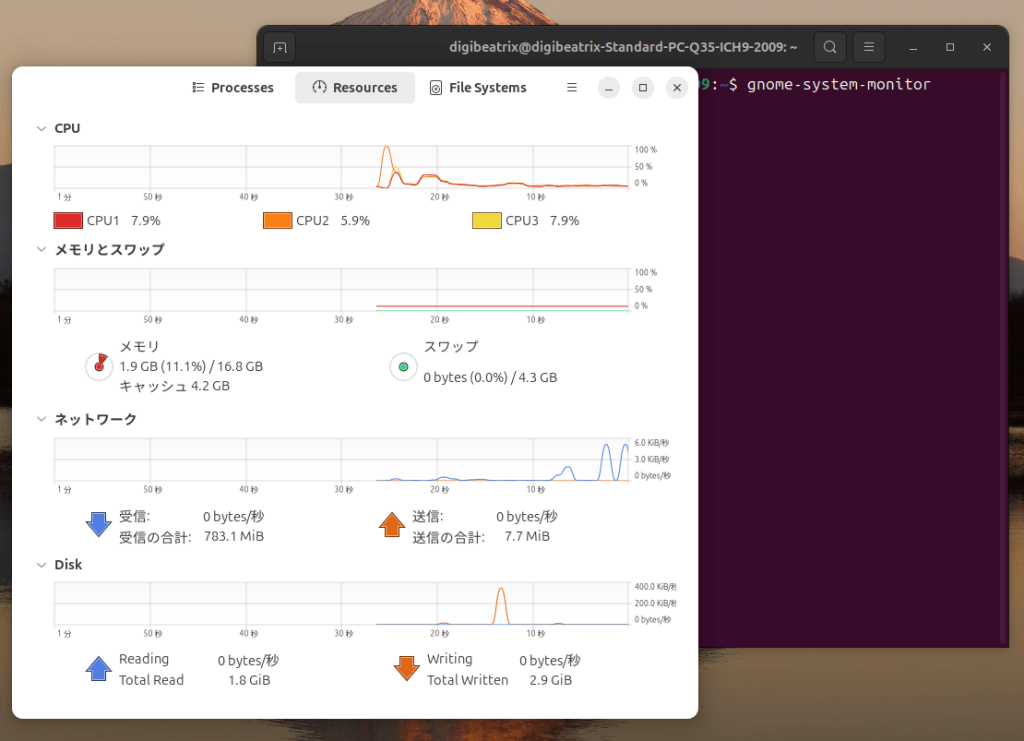
2.3 Launch System Monitor from the Terminal
When the system feels slow or the GUI becomes unresponsive,
launching System Monitor from the terminal is often faster.
Steps
- Press Ctrl + Alt + T to open a terminal
- Run the following command:
gnome-system-monitorSystem Monitor will start immediately.
This method is especially useful when mouse interaction is unreliable.
2.4 What If System Monitor Is Not Installed?
In some environments (minimal installations or non-GNOME desktops),
System Monitor may not be available.
In such cases, Ubuntu provides alternative task management tools,
which will be explained later in this article.
3. How to Use System Monitor in Ubuntu
Once System Monitor is open, you will see several tabs at the top of the window.
Each tab provides different information about your system.
Understanding these tabs is the key to using Ubuntu’s task manager effectively.
3.1 The Processes Tab: Finding What’s Running
The Processes tab shows all applications and background processes currently running on your system.
Typical columns include:
- Process Name – the name of the application or service
- CPU % – how much CPU power the process is using
- Memory – how much RAM the process is consuming
- User – which user started the process
You can click any column header to sort the list.
For example, clicking CPU % sorts processes by CPU usage.
This is the fastest way to identify what is making your system slow.
3.2 Identifying Performance Problems
If Ubuntu feels sluggish or the cooling fan is constantly running,
check these two columns first:
- CPU %
- Memory
Practical tips
- Short CPU spikes are usually normal
- A process that stays near the top for a long time may be the problem
- Browsers, IDEs, and video applications often consume large resources
If you recognize the application, you can decide whether to close it or let it finish its task.
3.3 Ending or Force-Stopping an Application
When an application stops responding, System Monitor lets you stop it safely.
Normal End
- Select the process
- Click End Process
This asks the application to close gracefully.
Force Stop
If the app does not close, use Force Stop.
Force Stop immediately terminates the process.
Any unsaved work in that application will be lost.
Use Force Stop only when necessary.
3.4 Which Processes Should You Avoid Ending?
Beginners often worry about stopping the wrong process.
A simple rule of thumb:
- Applications you opened yourself → generally safe to stop
- System processes (names containing system, daemon, gnome, service) → do not touch
If you are unsure, do not stop the process.
Searching the process name online is always safer than guessing.
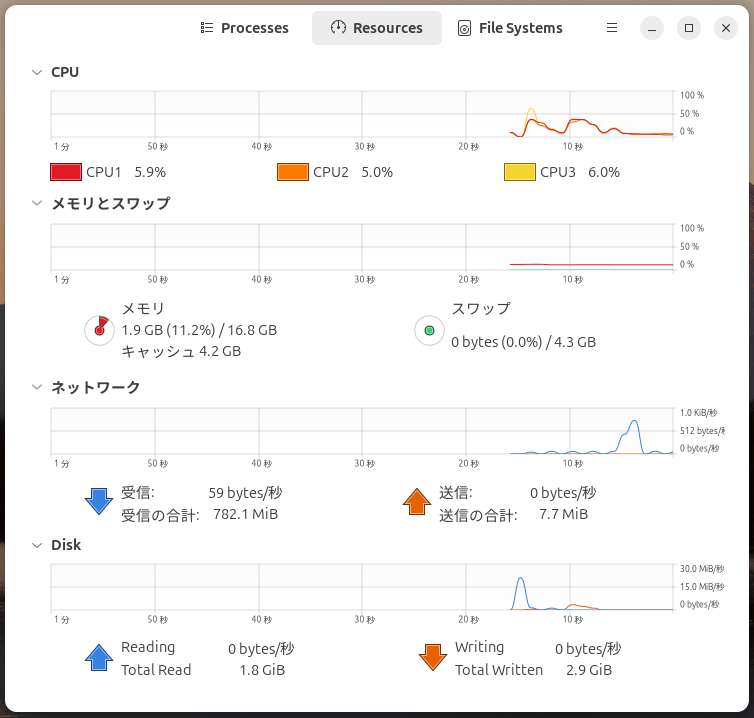
3.5 The Resources Tab: CPU, Memory, and Network
The Resources tab provides real-time graphs of system usage.
CPU
- Shows overall CPU usage
- Displays activity across all cores
High and constant CPU usage usually indicates heavy processing.
Memory
- Shows used, cached, and available memory
- Linux uses free memory as cache, so low “free” memory is not always a problem
This behavior is normal and helps improve performance.
Network
- Displays incoming and outgoing traffic
- Useful for detecting background downloads or uploads
3.6 Limitations of System Monitor
While System Monitor is excellent for daily use, it has limitations:
- Limited GPU usage visibility
- Less detailed process control than terminal tools
- Can feel cluttered on systems with many CPU cores
For advanced monitoring or troubleshooting,
command-line tools are often more effective.
4. What to Do When an Application Freezes in Ubuntu
Even on a stable system like Ubuntu,
applications can sometimes become unresponsive.
The good news is that a full system reboot is rarely necessary.
Ubuntu provides several ways to recover step by step.
4.1 Start With Patience: Is It Really Frozen?
Before force-closing an application, take a moment to observe.
Check whether:
- CPU usage briefly spikes and then drops
- Disk activity is ongoing
- The app is loading, saving, or compiling something
Some applications appear frozen but recover after a short delay.
4.2 Close the App Using System Monitor (Recommended)
If the app does not recover, use System Monitor first.
Steps
- Open System Monitor
- Find the unresponsive application in the Processes tab
- Click End Process
This sends a polite request to the app to close.
4.3 Use Force Stop When Necessary
If End Process does not work,
use Force Stop.
When to use it
- The app remains completely unresponsive
- CPU usage stays extremely high
- Other applications become hard to use
Force Stop immediately terminates the process.
Any unsaved data in that application will be lost.
4.4 When System Monitor Cannot Be Opened
In more severe freezes, the desktop may feel partially stuck.
In this case, the terminal is your best tool.
4.5 Kill a Process from the Terminal
Step 1: Open a terminal
Press:
Ctrl + Alt + TStep 2: View running processes
topThis shows a live list of processes and resource usage.
Step 3: Identify the Process ID (PID)
Look for the frozen application and note its PID (Process ID).
Step 4: End the process
kill PIDIn most cases, this closes the application safely.
4.6 Last Resort: Force Kill from the Terminal
If the process still refuses to stop:
kill -9 PIDThis command forcefully terminates the process immediately.
Use this only as a last resort.
It bypasses normal cleanup and may cause data loss.
4.7 A Safer Mindset for Handling Freezes
Keep these principles in mind:
- A frozen app does not mean the OS is broken
- Most problems can be solved without rebooting
- Start gentle, escalate only if needed
Ubuntu is designed to let you isolate and fix problems,
not restart everything at once.
5. Advanced Task Manager Alternatives in Ubuntu
System Monitor works well for most users,
but Ubuntu offers more powerful tools for deeper system monitoring.
Depending on your needs, these alternatives may be more efficient.
5.1 top: The Built-In Command-Line Monitor
top is available on almost every Linux system by default.
Key features
- No installation required
- Real-time CPU and memory usage
- Extremely reliable in emergency situations
To launch it, run:
topWhile the interface is minimal,top is invaluable when the graphical desktop is slow or unstable.

5.2 htop: The Most Popular Enhanced Task Manager
htop is a more user-friendly version of top
and one of the most widely used monitoring tools on Linux.
Why users like htop
- Color-coded display
- Clear per-core CPU usage
- Keyboard shortcuts for killing processes
Install htop
sudo apt install htopLaunch
htopFor many users, htop becomes the default task manager once installed.
5.3 bpytop: Modern and Highly Visual Monitoring
bpytop is a newer tool focused on visual clarity.
Features
- Large, readable graphs
- CPU, memory, disk, and network on one screen
- Smooth real-time updates
This tool is ideal if you want
a dashboard-style overview of system performance.
5.4 GUI Alternatives for Advanced Monitoring
Some users prefer graphical tools beyond the default System Monitor.
These tools may offer:
- Better multi-core visualization
- Improved resource breakdown
- Optional GPU usage display (hardware-dependent)
If you reach the limits of System Monitor,
switching to a more specialized tool is often the best solution.
5.5 Choosing the Right Tool for Your Needs
Here is a simple guideline:
- Beginner / daily use → System Monitor
- Troubleshooting / low resources → top
- Balanced power and usability → htop
- Always-on performance overview → bpytop
Ubuntu gives you choices—
the key is using the right tool at the right time.
6. Common Problems and How to Fix Them
This section addresses issues beginners frequently encounter
when using Ubuntu’s task manager tools.
6.1 System Monitor Is Missing or Won’t Launch
Possible reasons
- Minimal Ubuntu installation
- Non-GNOME desktop environment
- System Monitor was removed
Solution
Try launching it from the terminal:
gnome-system-monitorIf it is not installed:
sudo apt install gnome-system-monitorOn non-GNOME desktops, using alternative tools is often more appropriate.
6.2 A Process Restarts After Being Closed
Some processes automatically restart by design.
Common examples include:
- System services
- Background helpers
- Monitoring or sync processes
If a process keeps returning,
do not force-stop it blindly.
First, identify its purpose.
6.3 High Memory Usage Does Not Always Mean a Problem
Linux aggressively uses available memory as cache.
This means:
- “Free” memory may appear low
- Performance can still be normal
Focus on system responsiveness, not just raw numbers.
6.4 Feeling the Need to Reboot Too Often
In Ubuntu, rebooting is rarely the best first solution.
Try this order instead:
- Close the application
- Use System Monitor
- Kill the process from the terminal
- Reboot only if nothing else works
This approach saves time and reduces frustration.
7. FAQ (Frequently Asked Questions)
7.1 What Is the Ubuntu Equivalent of Task Manager?
Ubuntu uses System Monitor as its task manager equivalent.
It allows you to monitor processes and system resources.
7.2 Can I Open System Monitor With a Keyboard Shortcut?
Yes.
You can assign a custom keyboard shortcut to the command:
gnome-system-monitorThis allows instant access, similar to Windows.
7.3 What Is the Easiest Way to Close a Frozen App?
Use System Monitor first.
If it fails, use the terminal with:
kill PIDMost freezes can be resolved without rebooting.
7.4 Should I Install htop?
If you frequently monitor system performance, yes.
It is lightweight, powerful, and easy to use.
7.5 Ubuntu Feels Slow—What Should I Check First?
Start with CPU usage, then memory usage.
Look for processes that remain high over time.
8. Summary
- Ubuntu does not have an app called “Task Manager”
- System Monitor serves the same purpose
- You can manage processes via GUI or terminal
- Freezes rarely require a full reboot
- Advanced tools like
htopoffer deeper insight
Once you understand how task management works in Ubuntu,
you gain far more control over your system.
This knowledge turns Ubuntu from “confusing”
into a reliable and efficient operating system